Skip to Main Content

Scientific & Medical ART Imagebase : How to Use

About

Scientific & Medical ART (SMART) Imagebase is created by Nucleus Medical Art and available via EBSCO. It consists of the following:

  • Stock Illustrations
  • Medical Charts
  • Medical Animations
  • Physiology Animations
  • Biology Animations
  • 360 VR Animations
  • Human Body Lesson Plans
  • Coloring Book Pages

Searching

How to search

Go to the homepage of SMART. There are three ways to find information:

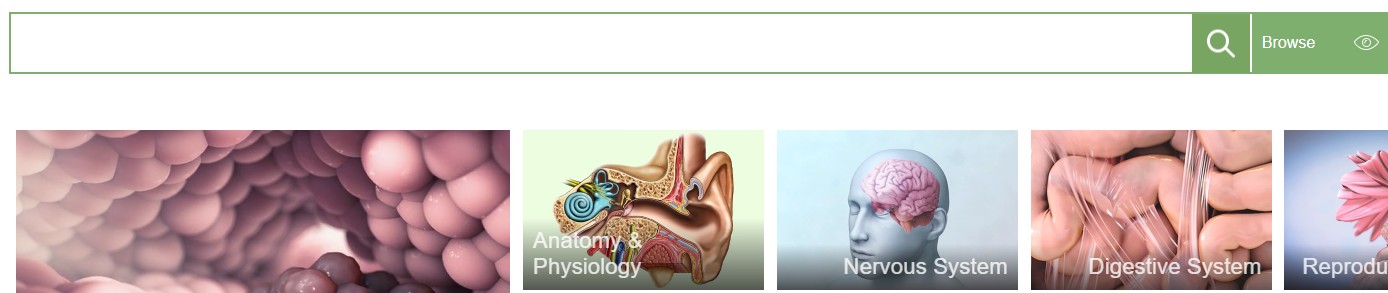
  • Click on a category with its accompanying image 
  • Search using the search box at the top of the page 
  • Click the Browse feature

Search box

  • Type a keyword into the search box
  • You can also search for a phrase by placing quotation marks around two or more words e.g. "heart attack"
  • Click the magnifying glass or hit enter 
  • The SMART Imagebase displays a list of results. Each result has a thumbnail image of the content available 
  • If your word or phrase is not found, it will recommend alternative search terms
  • Watch this video

Browse 

  • Click the Browse feature at the top of the page to see options for each category
  • Click on a topic under the categories e.g. Type 2 diabetes 
  • The search results page will load with content about your topic
  • Watch this video

Search results

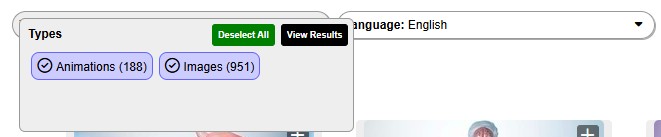
  • You will be taken to the search results page which can be filtered by content type (animation or image) and language 
  • By default, the language displays in English
  •  Note: selecting a language option filters the results displayed for the term searched, it does not search for foreign-language versions of the content displayed in your results

How to view

  • Click the thumbnail image to view the content. This could be either an image or animation (Video)
  • An explanation for the image or a transcript of the video is found under the item with accompanying keywords 
  • Related topics are found to the right
  • If the content is available in a different language, this will be noted under Variations
  • There are options to download, cite, share or add to a Collection (To do this you must sign in and create a personalised account)
  • Watch this video

Currency

  • Content is updated at least once a week, sometimes several times a day (Updates do not include changes to technology shown in surgical, diagnostic, or testing procedures)

Sharing, Printing and Downloading

  • Click the Share button to copy the link, email or share to social media platforms
  • The information and images are copyrighted so check the usage rights for content here
  • Images can be printed for educational purposes i.e. as part of a handout or for uploading to Moodle etc. 
  • Downloadable content is available in the following format:
    • JPEG
    • PDF
    • MP4

Personalised Account

Create a personalised account so you can:

How to create a personalised account

  • Click the Create a personalized account link in the top green banner
  • Fill out the Create a personalized account form
  • Note about your password: Use only letters and numbers for your password. It should be between 5-20 characters. This database does not like special characters like ? # ! @ etc. 
  • Tick to agree to the Terms of Use
  • Click Create Account 

Note: As this database is part of EBSCOhost, you will need to log in to MYEBSCO before you can access your personalised account

Subsequent sign ins

  • Click sign in at the top of the homepage
  • At the top of the next page, log into your account using your institutional/student email and password
  • Click Proceed

Collections

My Collection

  • This is a repository where you can create a collection of selected content during a single session
  • If you add items to My Collection but are not signed into a My Collection account, the items are saved in the collection on that computer for 30 days. If you do not use the collection on that computer after 30 days, the collection expires 
  • If you create a personalised account, you can create and save items to My Collection for one year. Each time a collection is accessed or added to, it will save for another year from that date. If you do not use the collection after one year, the collection expires
  • You can share multiple items by saving them to a Collection and then sharing that Collection

Creating and Accessing Collections

Referencing


  • A Cite this Item button is available below the item description
  • Click to view the details and access a permanent link to the item
  • Use this citation as a guide only because it is machine generated and not always correct. Check any references against the APA Referencing Guide

Referencing images

  • Following the advice in the APA Referencing guide for Figures
  • You must include a copyright attribution at the end of the figure note which is below the image. SMART requests the following format using the current year: © 2025 Nucleus Medical Media, Inc.

Help

Click About in the top right of the database for information about SMART, tutorials and FAQs.